![myttisi-logo-light.png]](https://knowledge.ttisi.com/hs-fs/hubfs/myttisi-logo-light.png?height=40&name=myttisi-logo-light.png)
Issue
Some Mac users viewing reports in Firefox may see display problems in the report header or page title area. For example, the header may appear blank, text may show in the wrong place, or some graphics may look misplaced.
This happens when the report is opened inside Firefox’s built-in PDF viewer on macOS. It does not happen when the PDF is downloaded and opened outside the browser.
Who Is Affected
This issue only affects users who are:
- Using Firefox
- On macOS
- Viewing the report inside Firefox’s built-in PDF viewer
The issue does not affect:
- Downloaded PDFs
- Chrome
- Safari
- Firefox on Windows
- Firefox on Linux
Recommended Fix
The easiest fix is to download the report and open the downloaded PDF directly. If you want to keep viewing reports inside Firefox, you can make a one-time Firefox settings change.
One-Time Firefox Settings Change
Follow these steps in Firefox on your Mac.
1. Open Firefox. It does not matter what website you are on.
2. Click in the address bar at the top of the browser window. This is the bar where you normally type website addresses.
3. Type exactly: about:config
Then press Enter.
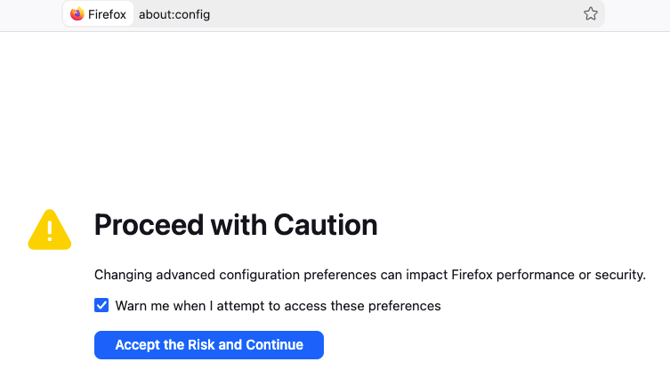
4. A warning page will appear that says “Proceed with Caution.” Click Accept the Risk and Continue.Note: This page is for advanced Firefox settings, but you are only changing one specific setting.
Type exactly: pdfjs.disableFontFace
6. One result should appear. It will show the setting name pdfjs.disableFontFace, and the value will likely say false.

8. You are done! You do not need to save anything, and the change takes effect immediately.
Test the Fix
Open the report PDF again in Firefox. The report header and page title should now display correctly.
Additional Notes
This is a Firefox display issue on macOS. The report should display correctly if it is downloaded or opened in another supported browser.
Turning Off PDF Preview in Your Browser
If you would rather skip the browser’s built-in PDF viewer, you can set your browser to download PDFs instead of previewing them. The report will then open in your computer’s default PDF application, which avoids browser viewer display issues altogether.
Firefox
1. Click the menu button in the top right corner. It looks like three horizontal lines.
2. Select Settings.
3. In the General panel, scroll down to Files and Applications.
4. In the Applications section, find Portable Document Format (PDF).
5. In the Action column, click the dropdown menu.
6. Change the action from Open in Firefox to Save File. You can also choose Always Ask if you want Firefox to ask what to do each time.
Advanced Firefox Option
You can also fully turn off Firefox’s built-in PDF viewer.
1. Type this in the Firefox address bar: about:config
2. Click Accept the Risk and Continue.
3. Search for: pdfjs.disabled
4. Set the value to true.
Chrome
1. Type this in the Chrome address bar: chrome://settings/content/pdfDocumentsThen press Enter.
2. Select Download PDFs. You can also get to this setting by going to: Settings > Privacy and security > Site settings > Additional content settings > PDF documentsMicrosoft Edge
1. Type this in the Edge address bar: edge://settings/content/pdfDocumentsThen press Enter.
2. Turn on Always download PDF files. You can also get to this setting by going to: Settings > Cookies and site permissions > PDF documentsSafari
Safari does not have a setting to fully turn off its built-in PDF preview.
To download a report instead of previewing it, right-click or Control-click the report link and choose Download Linked File. You can also hold the Option key while clicking the report link.